> ## Documentation Index
> Fetch the complete documentation index at: https://docs.hackersquad.io/llms.txt
> Use this file to discover all available pages before exploring further.
# Capture live demos
> Use a display-connected base station to accept live demo requests, present wirelessly, and capture demos for the post-event summary.
HackerSquad helps you capture live demos during the event so those presentations can become part of the broader event record. This is especially useful when you want to stream demos to the room, support wireless presenting, and preserve the content for the post-event summary.
## Set up a base station
To capture live demos, you need a computer connected to the main display in the room. This computer acts as the base station for live presentations.
The base station is responsible for receiving requests to go live, showing presenter content on the room display, and helping route the demo experience through HackerSquad.
On the base station computer, open the event manager dashboard in HackerSquad. This dashboard contains the navigation items that allow the base station to receive requests from speakers and demo presenters.
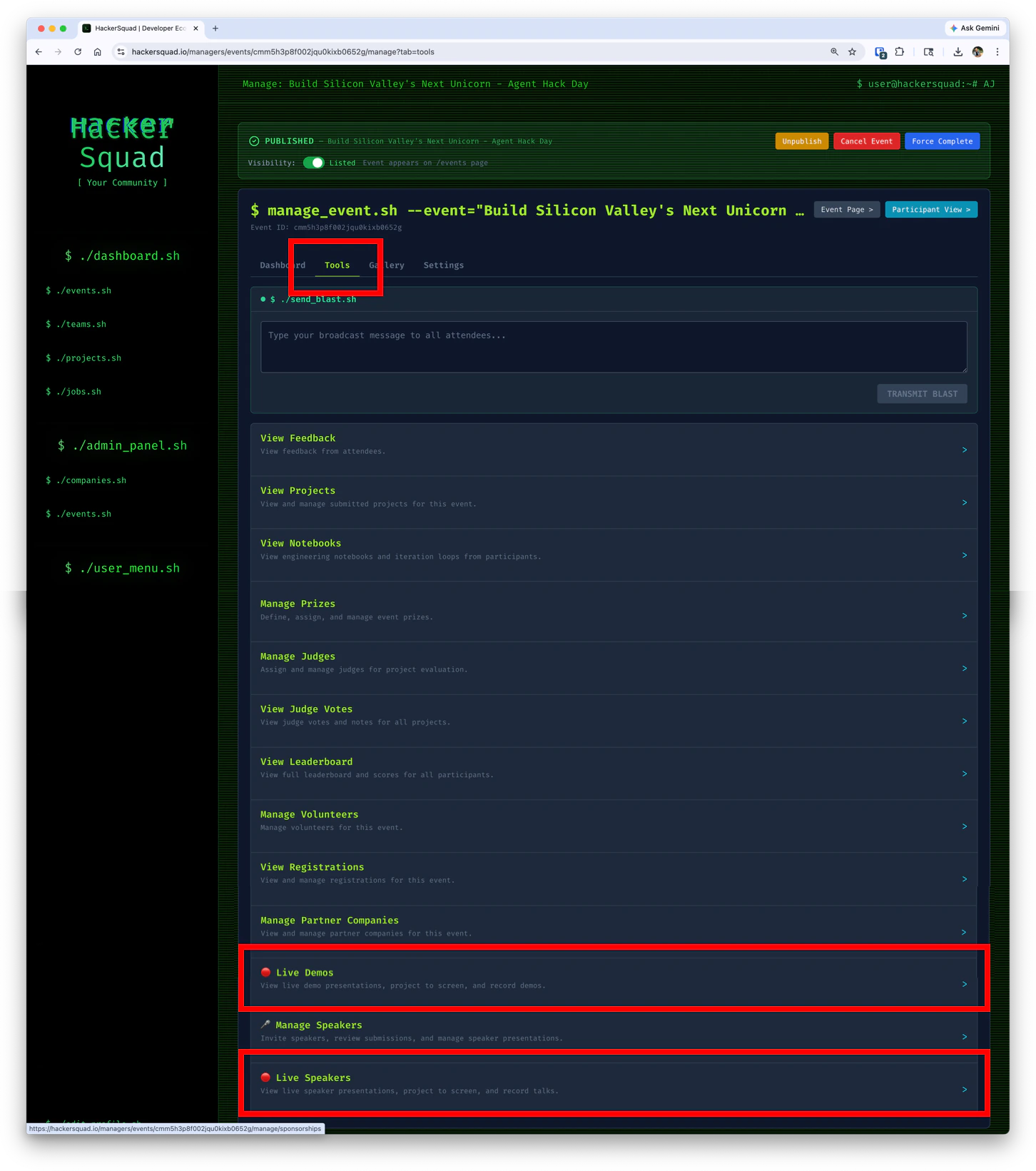 Set up the base station before the event begins and test it with the main display so you are ready when presenters request to go live.
## Start the live viewer session
On the base station, open the live viewer tool and click **Start Session**.
Set up the base station before the event begins and test it with the main display so you are ready when presenters request to go live.
## Start the live viewer session
On the base station, open the live viewer tool and click **Start Session**.
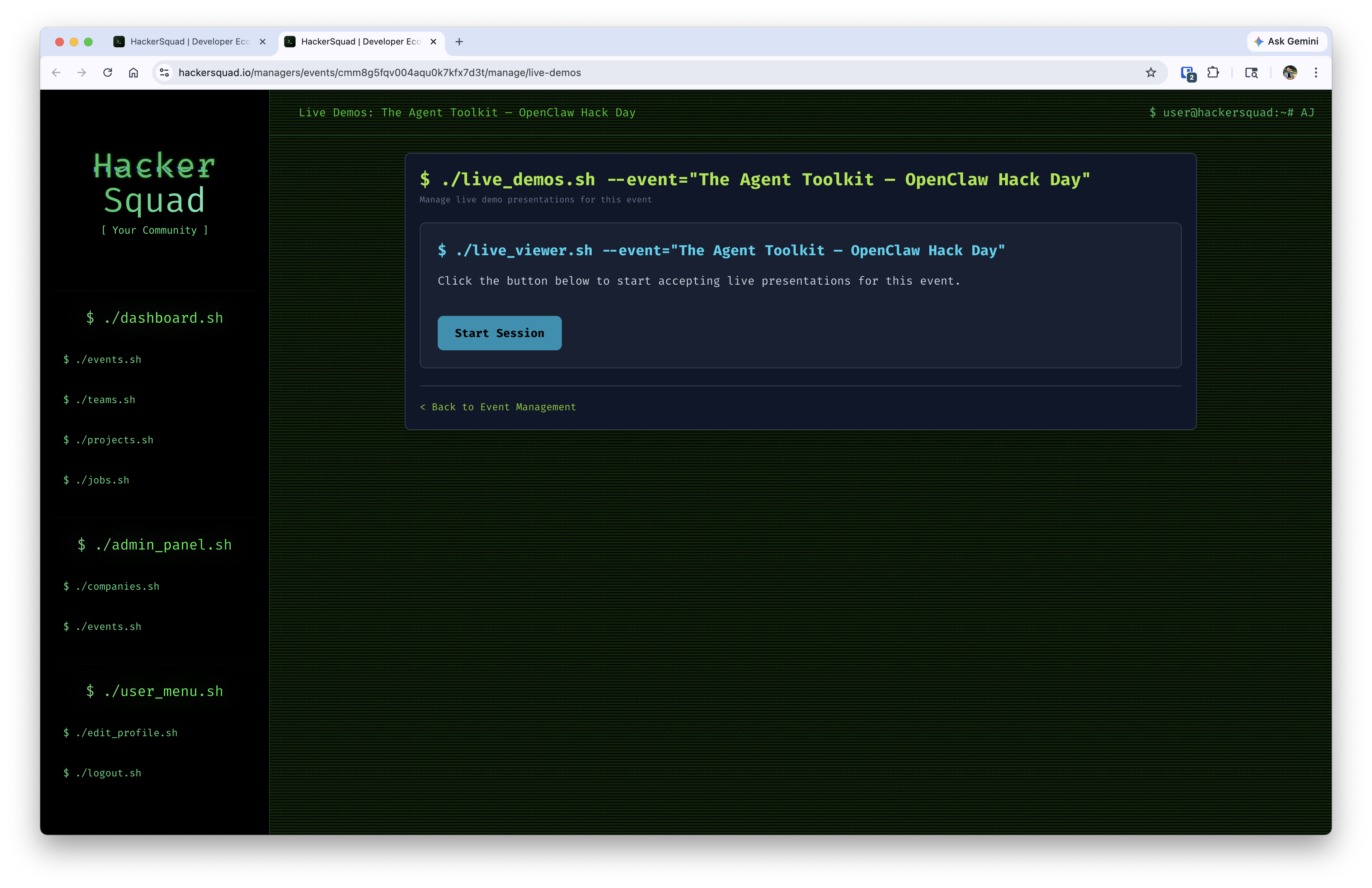 Once the session has started, the base station is ready to receive live requests from presenters.
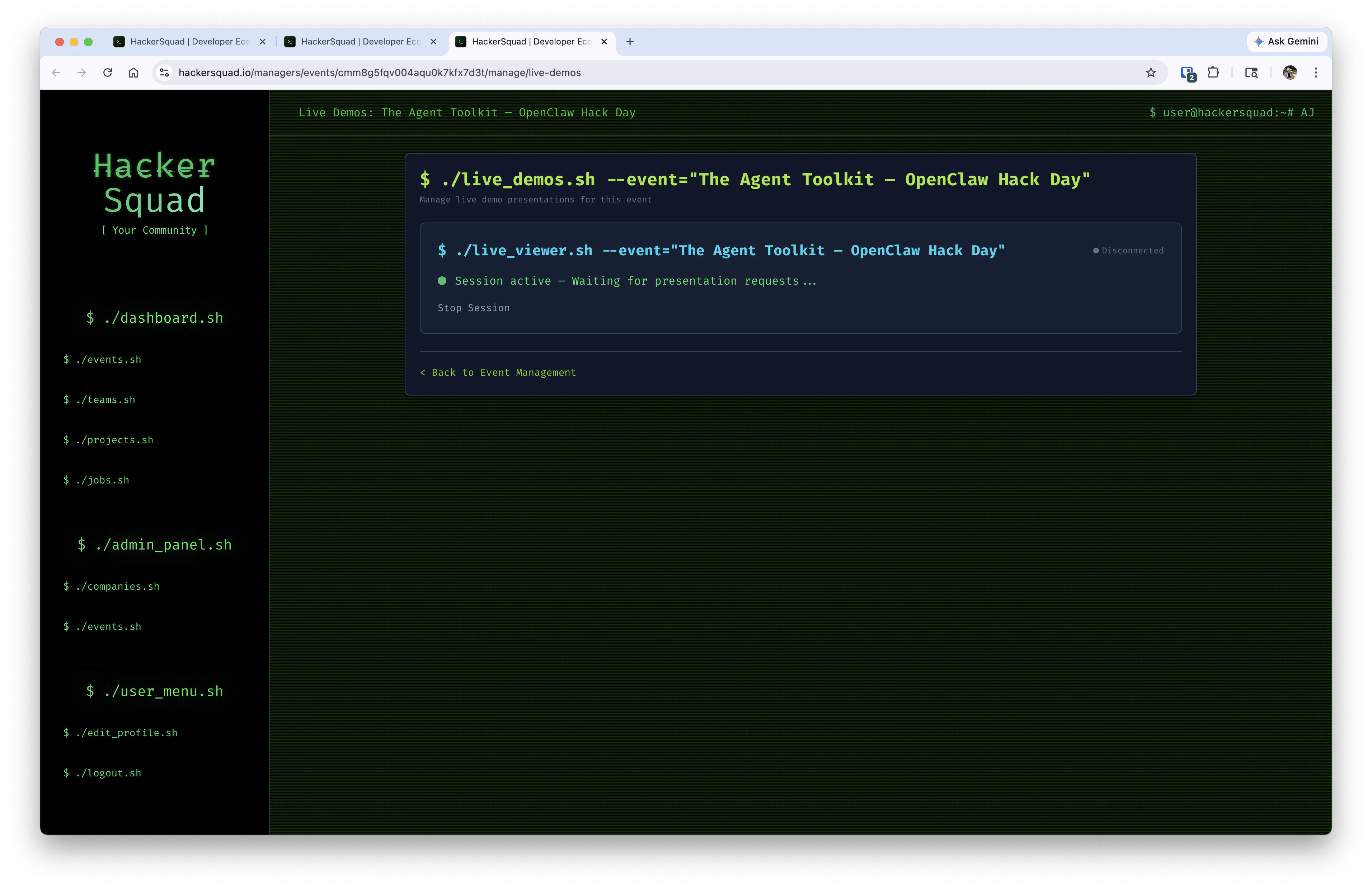 When a builder or speaker requests to go live, the base station will receive a prompt like this.
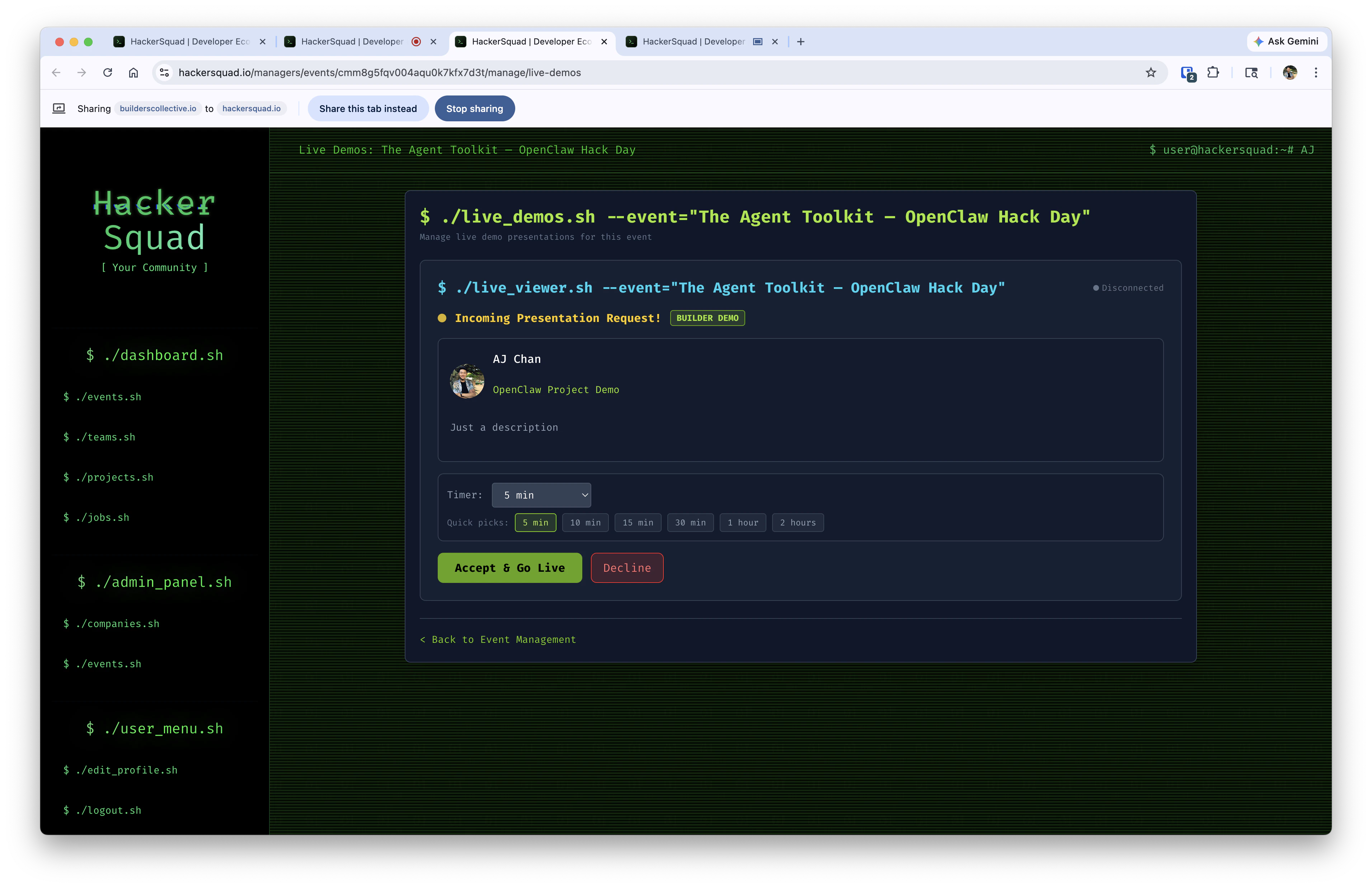 Once the base station accepts the request, it presents both the individual's webcam feed and the screen they shared. This allows the room to see the presenter and the live demo at the same time.
When the presentation timer ends, HackerSquad automatically cuts off the session and begins processing the video production.
## How presenters request to go live
When a speaker or builder is ready to present, they request to go live directly in HackerSquad.
1. The builder opens the event experience and starts the presentation flow in HackerSquad.
Once the base station accepts the request, it presents both the individual's webcam feed and the screen they shared. This allows the room to see the presenter and the live demo at the same time.
When the presentation timer ends, HackerSquad automatically cuts off the session and begins processing the video production.
## How presenters request to go live
When a speaker or builder is ready to present, they request to go live directly in HackerSquad.
1. The builder opens the event experience and starts the presentation flow in HackerSquad.
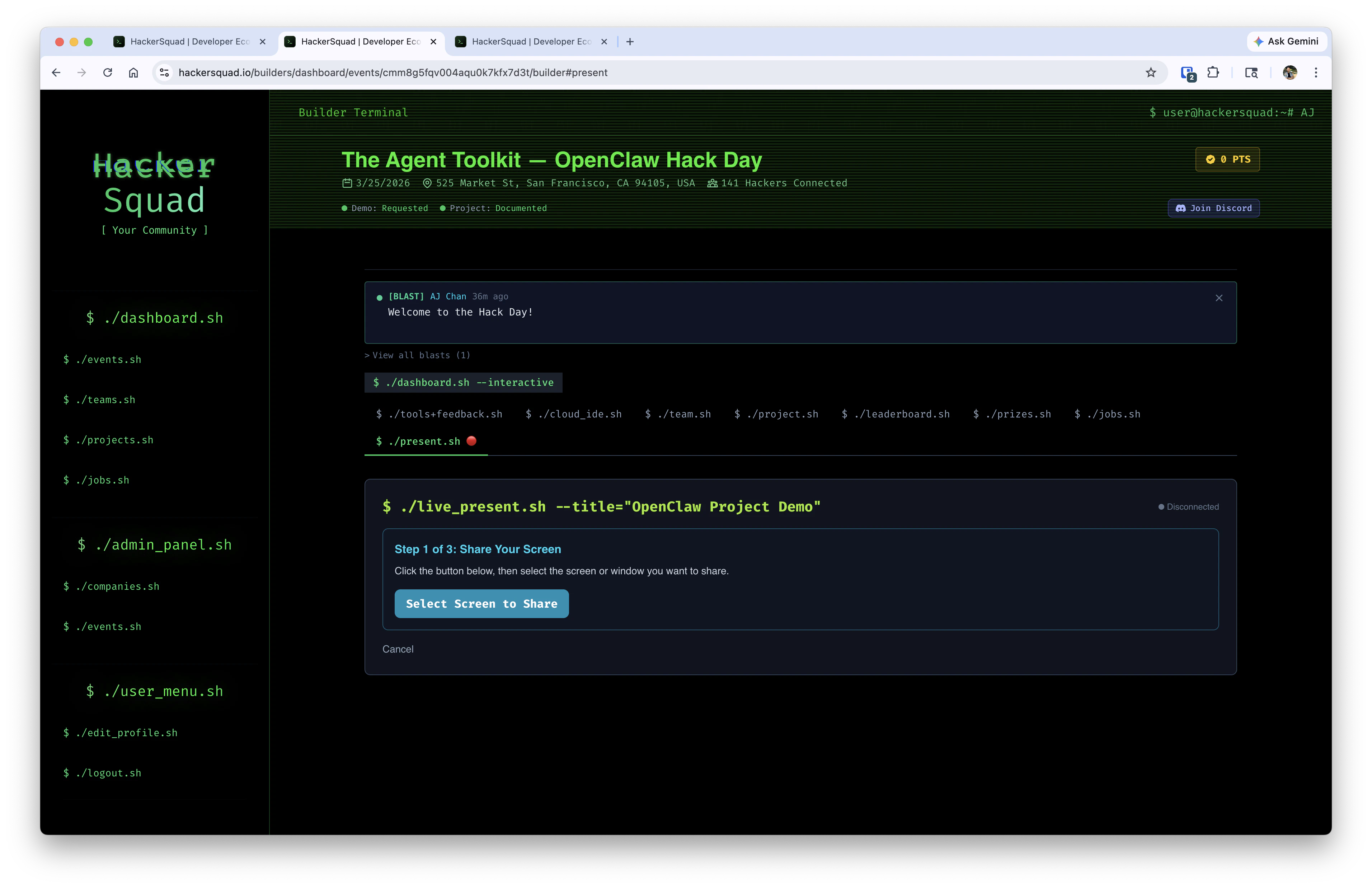 2. The builder continues through the present flow and confirms they want to present.
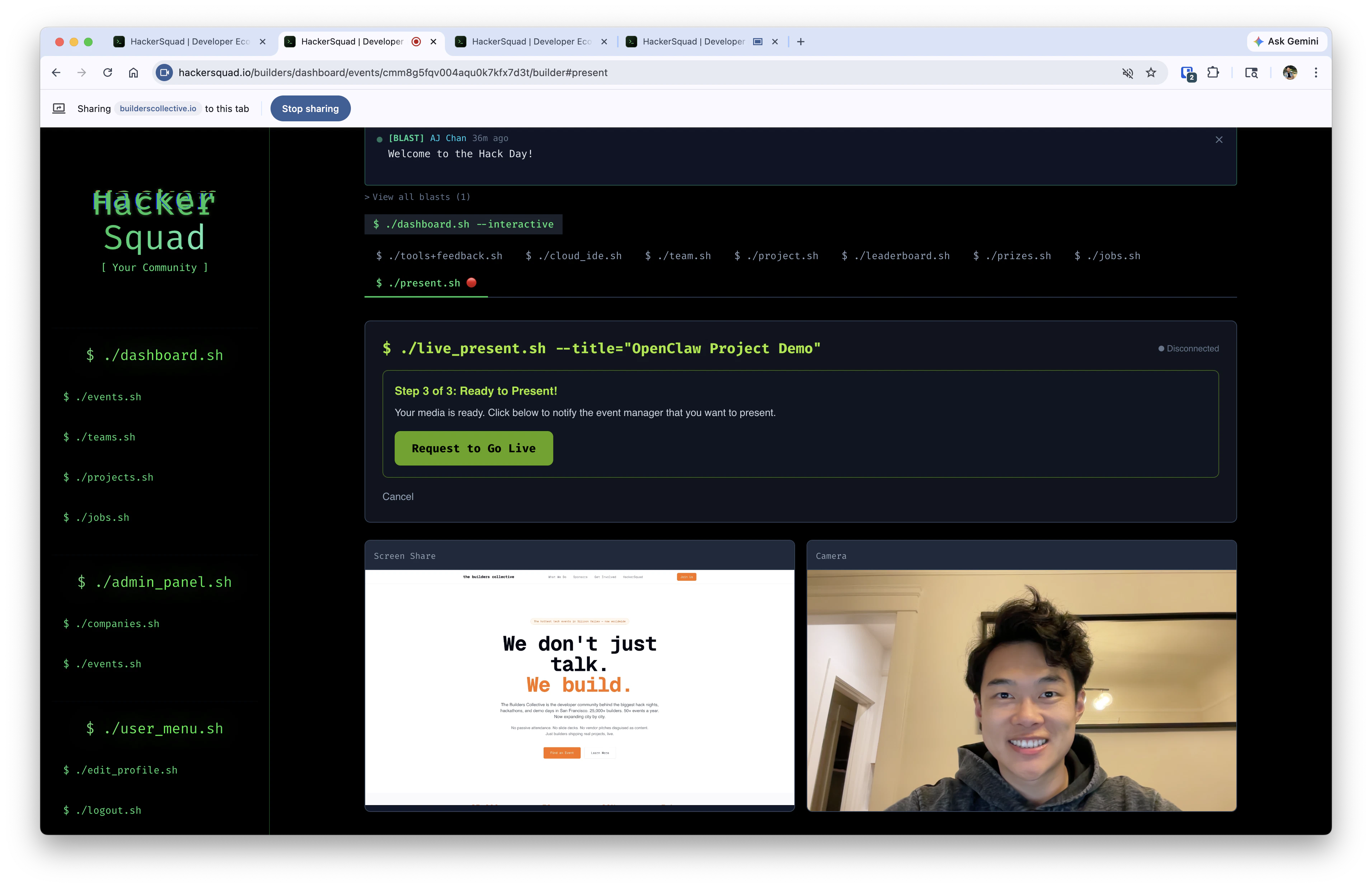 3. The request is sent through HackerSquad so the base station can receive it and prepare the room display.
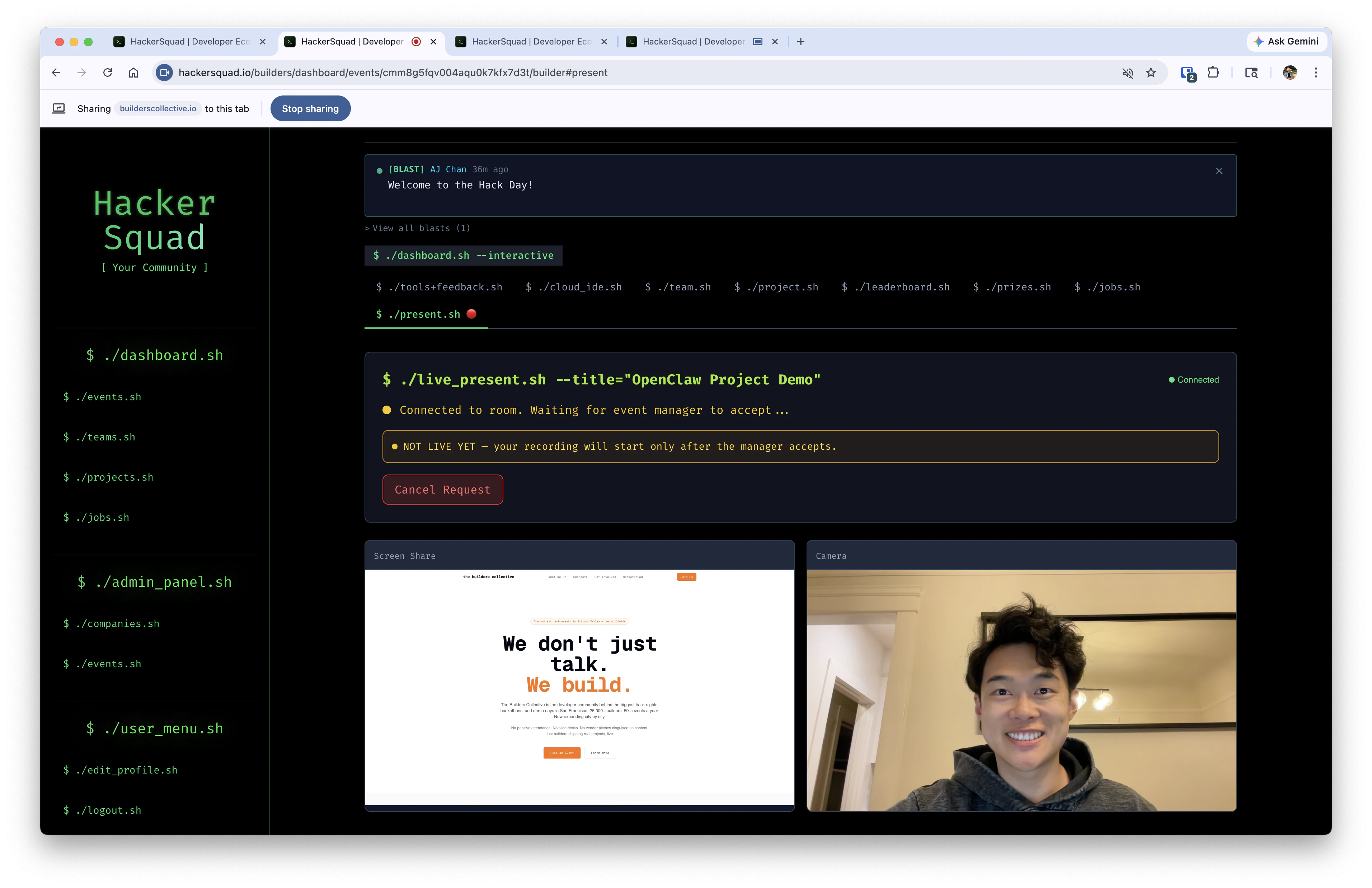 Once accepted, the base station handles streaming the presenter's content to the room while the presenter remains remotely connected and shares their own laptop screen.
## How the demo display works
The display-connected base station is the machine responsible for showing the presenter's shared screen to the room.
This setup allows the speaker or presenter to stream wirelessly from their laptop while the base station delivers that content to the larger display. It creates a smoother live-demo experience without requiring every presenter to plug directly into the room hardware.
## What HackerSquad captures
As live demos run through HackerSquad, the platform automatically captures:
* Video footage
* Presentation materials
* Demo content
This gives you a record of the live showcase and makes it easier to preserve what happened during the event.
## Why live demo capture matters
Captured demos help extend the value of the event after it ends. Instead of losing presentations once the room clears out, you can keep a record of what builders and speakers shared live.
That captured content also supports the post-event summary. When your live demos are recorded through HackerSquad, they can contribute to the final event recap alongside projects, speakers, and other event activity.
## Next steps
Set up a similar workflow for live presentations during the event.
See how captured demos contribute to the final event recap.
Once accepted, the base station handles streaming the presenter's content to the room while the presenter remains remotely connected and shares their own laptop screen.
## How the demo display works
The display-connected base station is the machine responsible for showing the presenter's shared screen to the room.
This setup allows the speaker or presenter to stream wirelessly from their laptop while the base station delivers that content to the larger display. It creates a smoother live-demo experience without requiring every presenter to plug directly into the room hardware.
## What HackerSquad captures
As live demos run through HackerSquad, the platform automatically captures:
* Video footage
* Presentation materials
* Demo content
This gives you a record of the live showcase and makes it easier to preserve what happened during the event.
## Why live demo capture matters
Captured demos help extend the value of the event after it ends. Instead of losing presentations once the room clears out, you can keep a record of what builders and speakers shared live.
That captured content also supports the post-event summary. When your live demos are recorded through HackerSquad, they can contribute to the final event recap alongside projects, speakers, and other event activity.
## Next steps
Set up a similar workflow for live presentations during the event.
See how captured demos contribute to the final event recap.