Create volunteer opportunities, invite the community to help, and use HackerSquad to coordinate volunteer roles for your event.
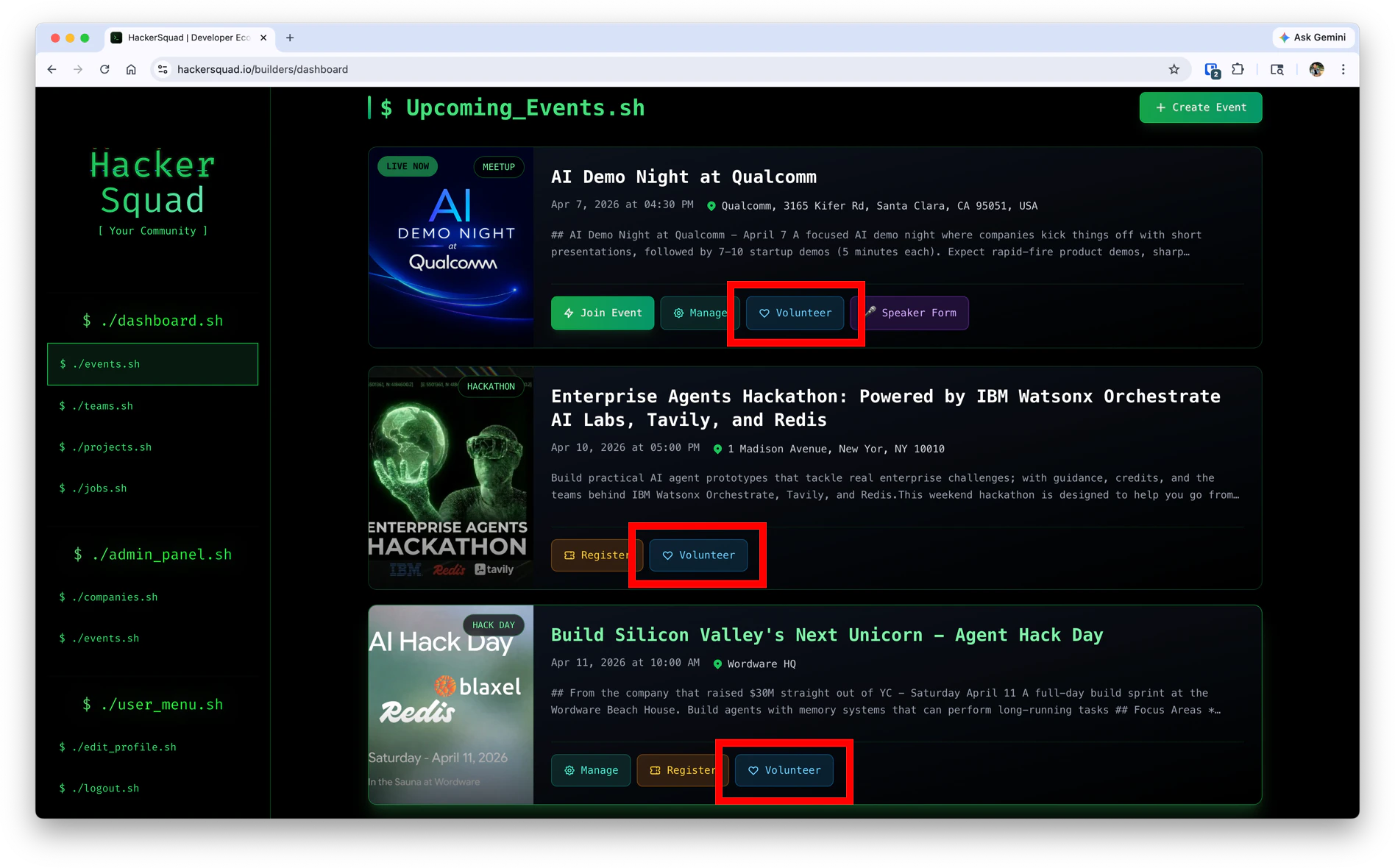
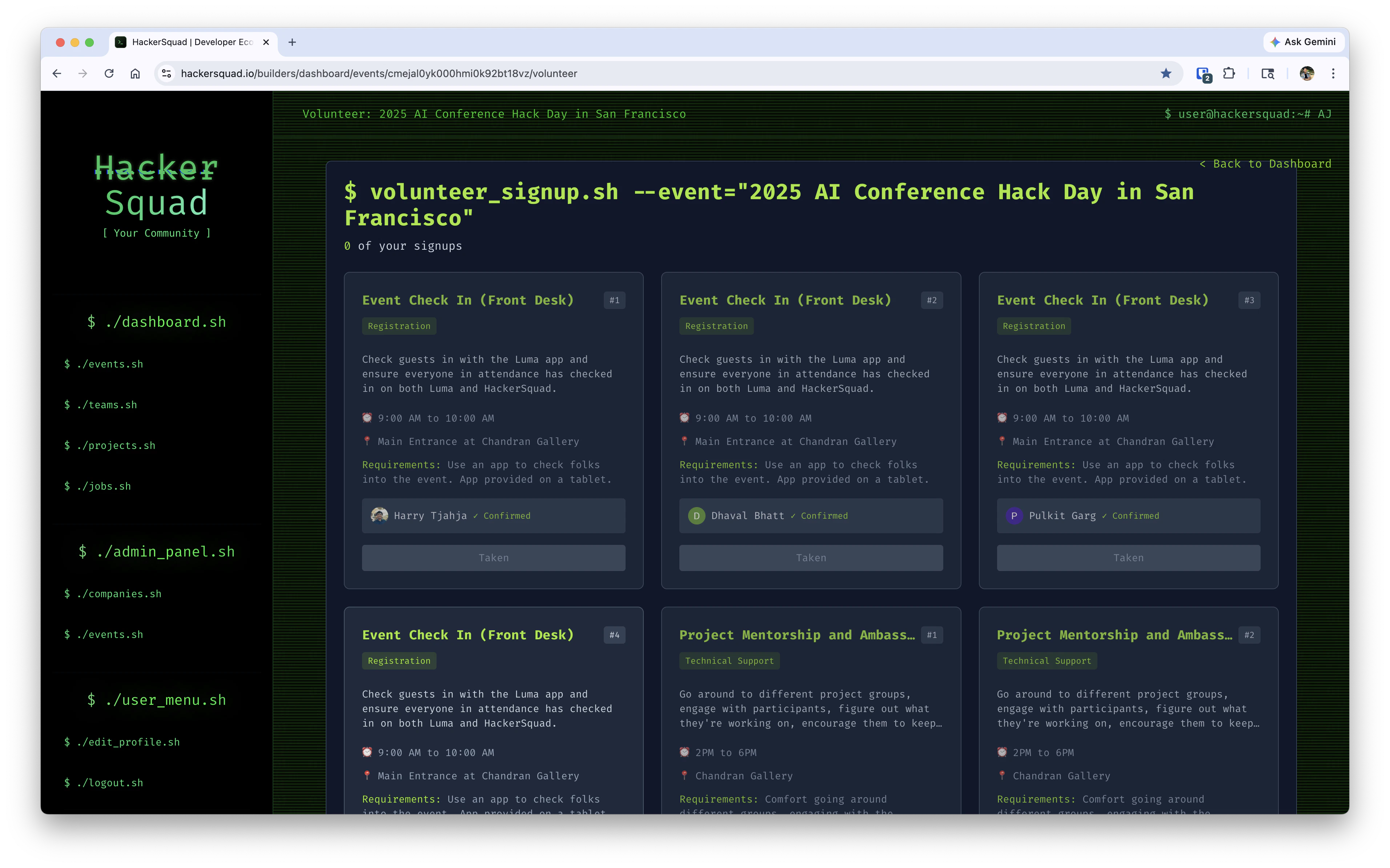
You can use HackerSquad to organize volunteers for your event. Create volunteer opportunities in the event management portal, then invite your community to register for those roles.Those opportunities appear on the Builder Dashboard as a Volunteer button for each event. This makes it easier for community members to see where they can help and sign up for the work that fits them best.
Volunteer opportunities help you turn general interest into clear responsibilities. The more specific you are about what needs to happen, the easier it is for people to step in and help.For example, you can create volunteer opportunities for:
Support check-in and registration
Support lunch catering
Help direct attendees at the venue
Assist with setup or teardown
HackerSquad helps you see who is signing up for what, but it does not remove the need to coordinate people directly. You should still confirm assignments, timing, and expectations with your volunteers.
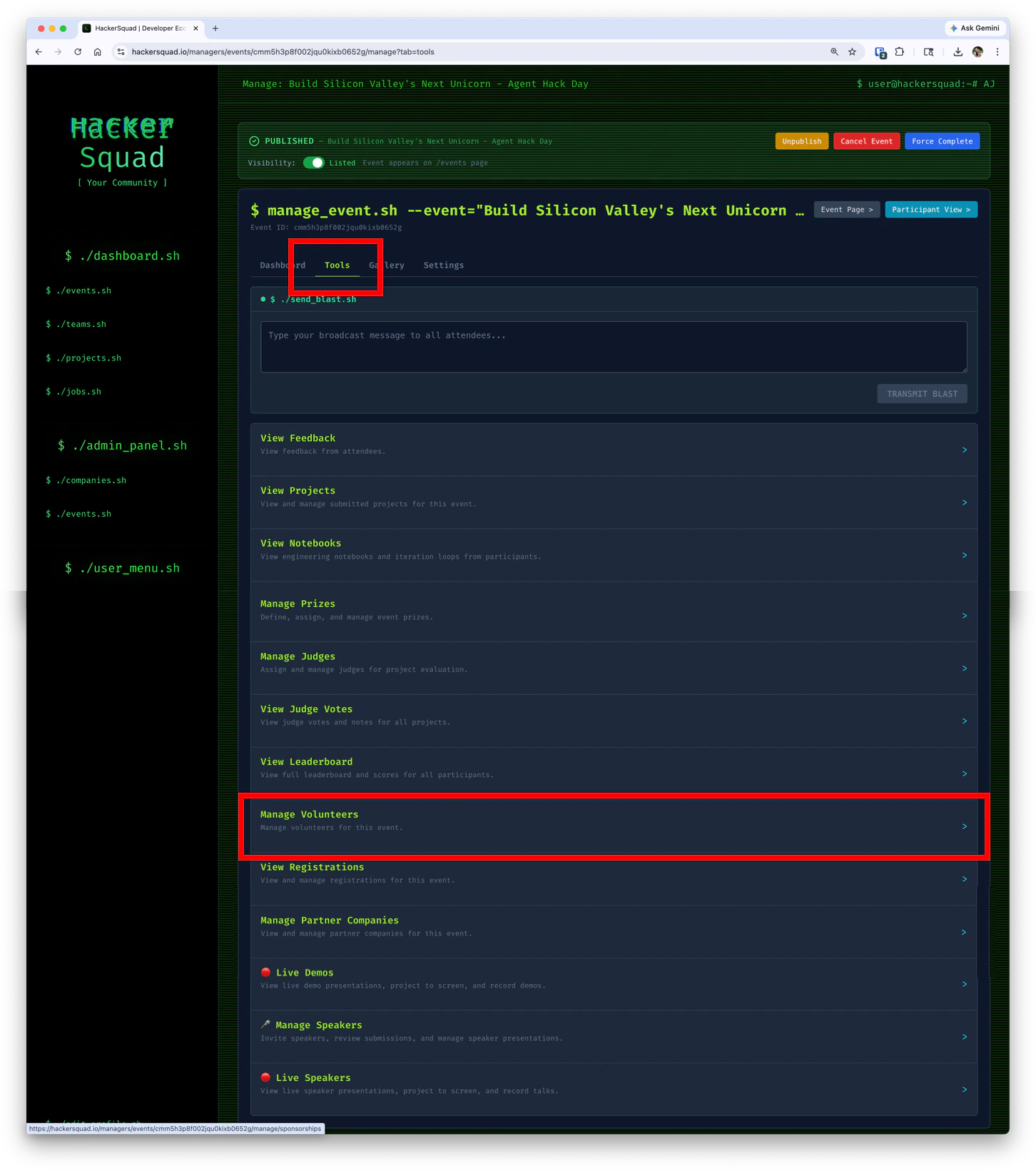
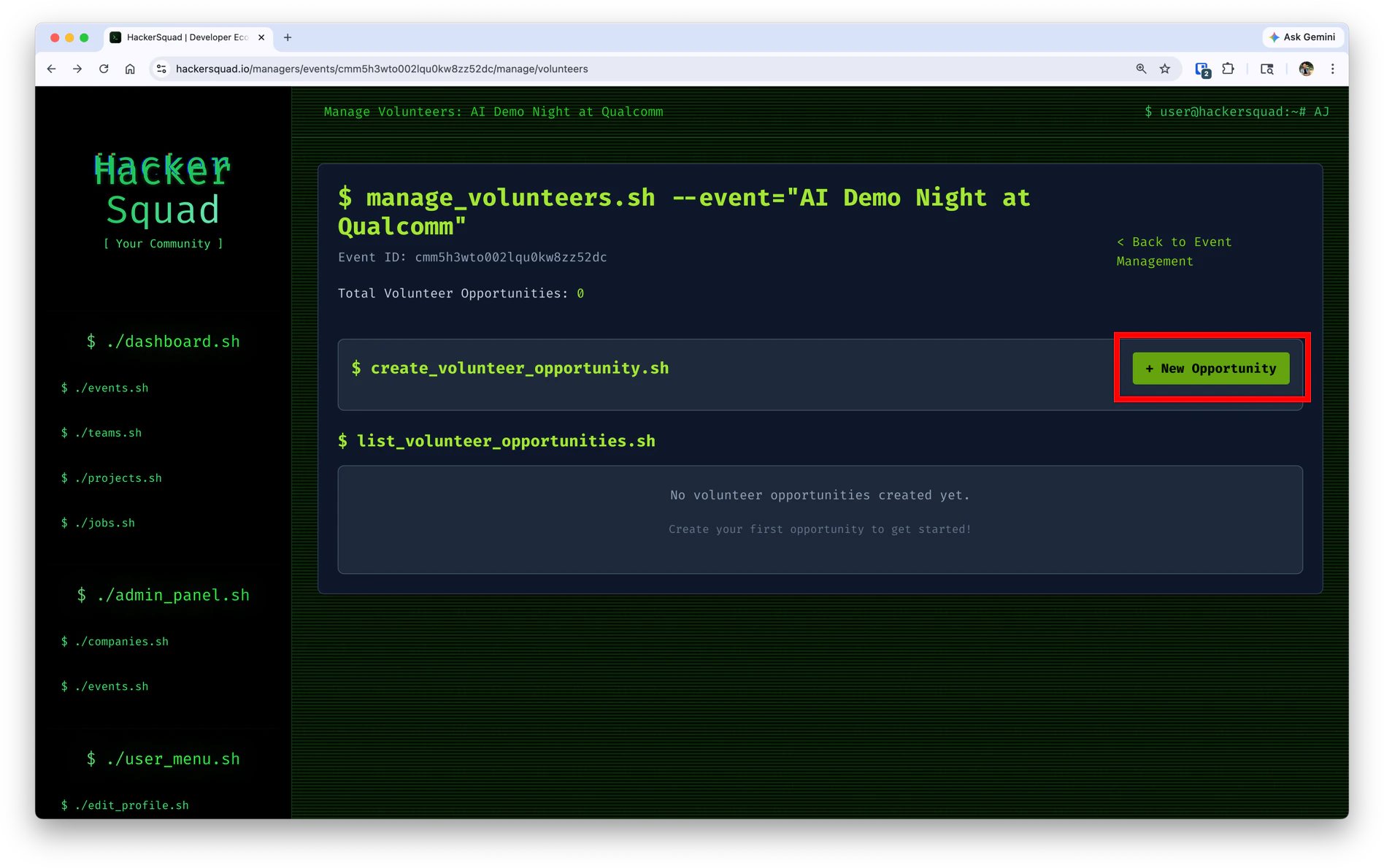
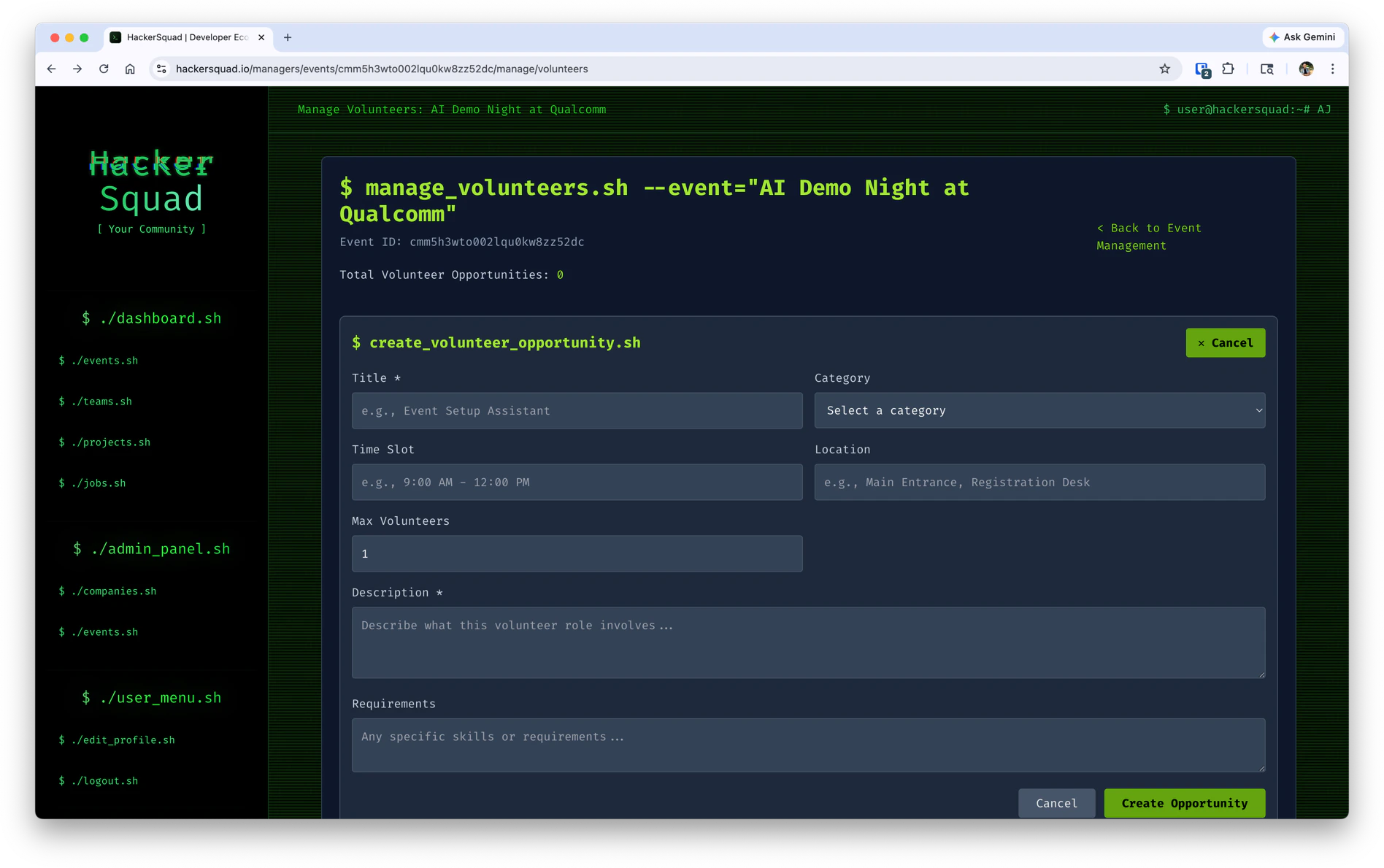
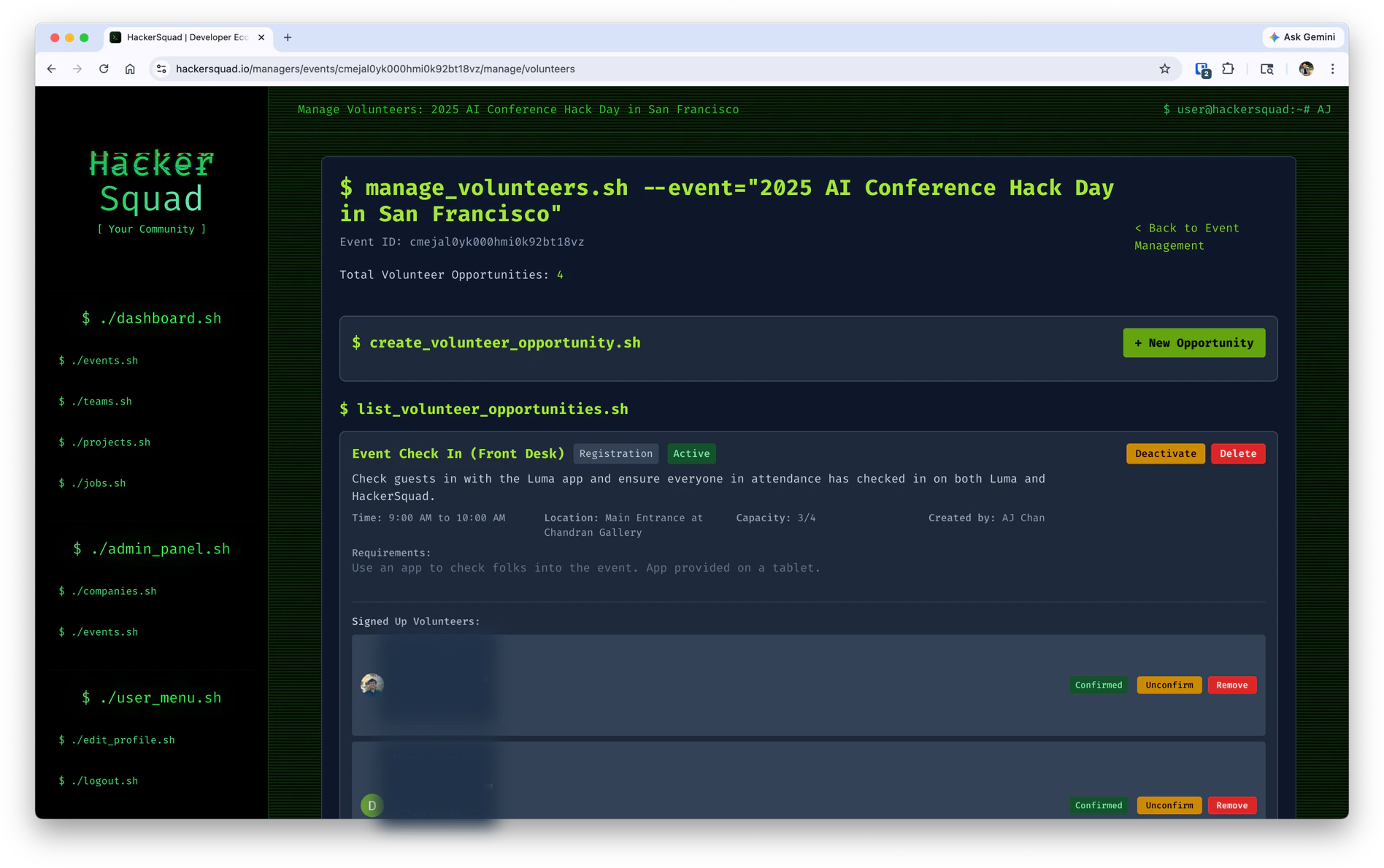
From the Event Managers portal, select Tools and then Manage Volunteers.Start in the event management portal and open the volunteer management view for your event.From there, create a new opportunity for each role you want volunteers to fill.
Once you publish volunteer opportunities, they appear on the Builder Dashboard for the event.Community members can use the Volunteer button to review available roles and register for the ones they want to help with.
After people sign up, you can review who has taken each role and see how your volunteer coverage is shaping up.Use this view to confirm that each opportunity has enough coverage. If an important role is still unfilled, update the opportunity details or continue promoting it to your community.