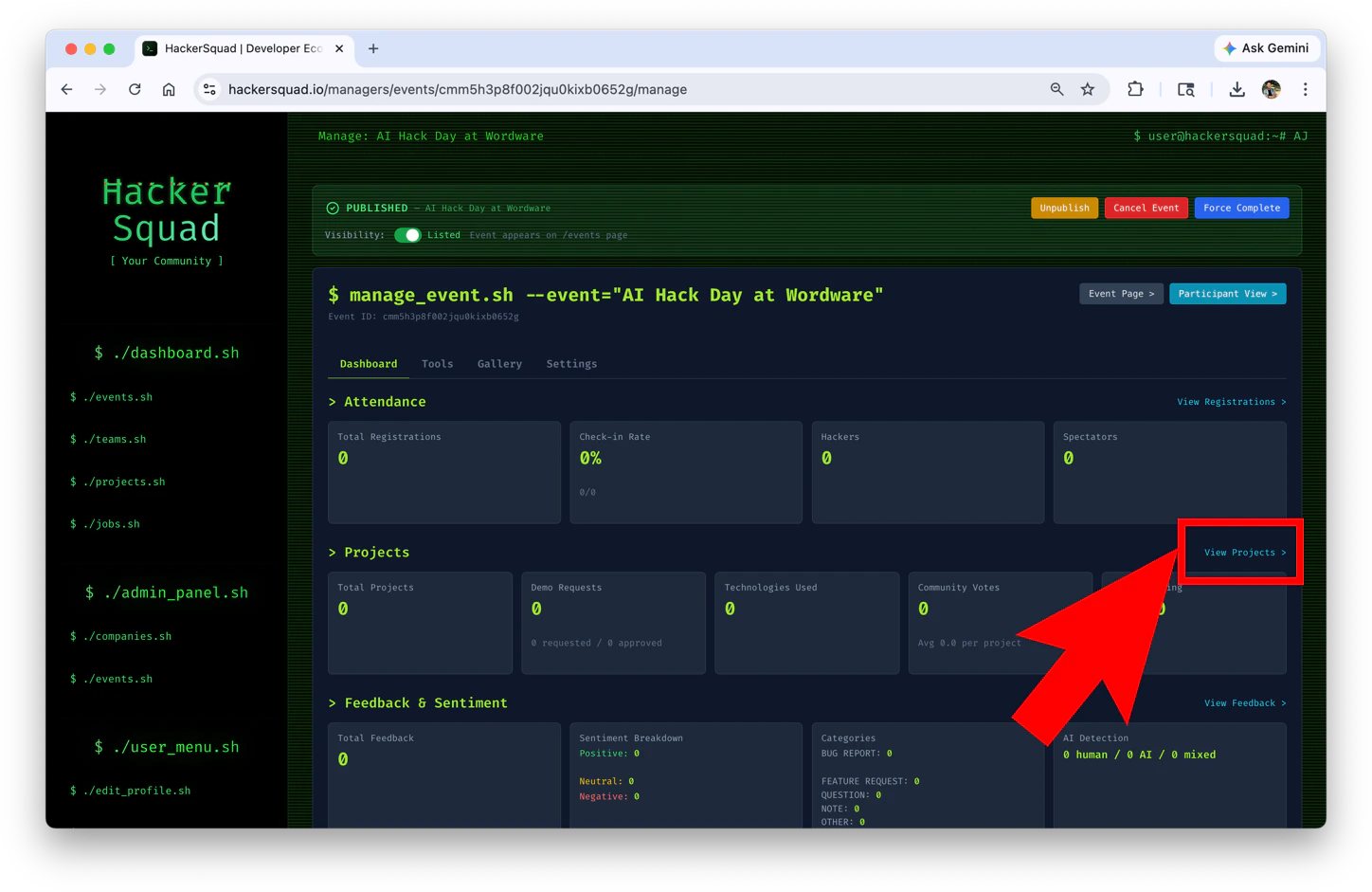
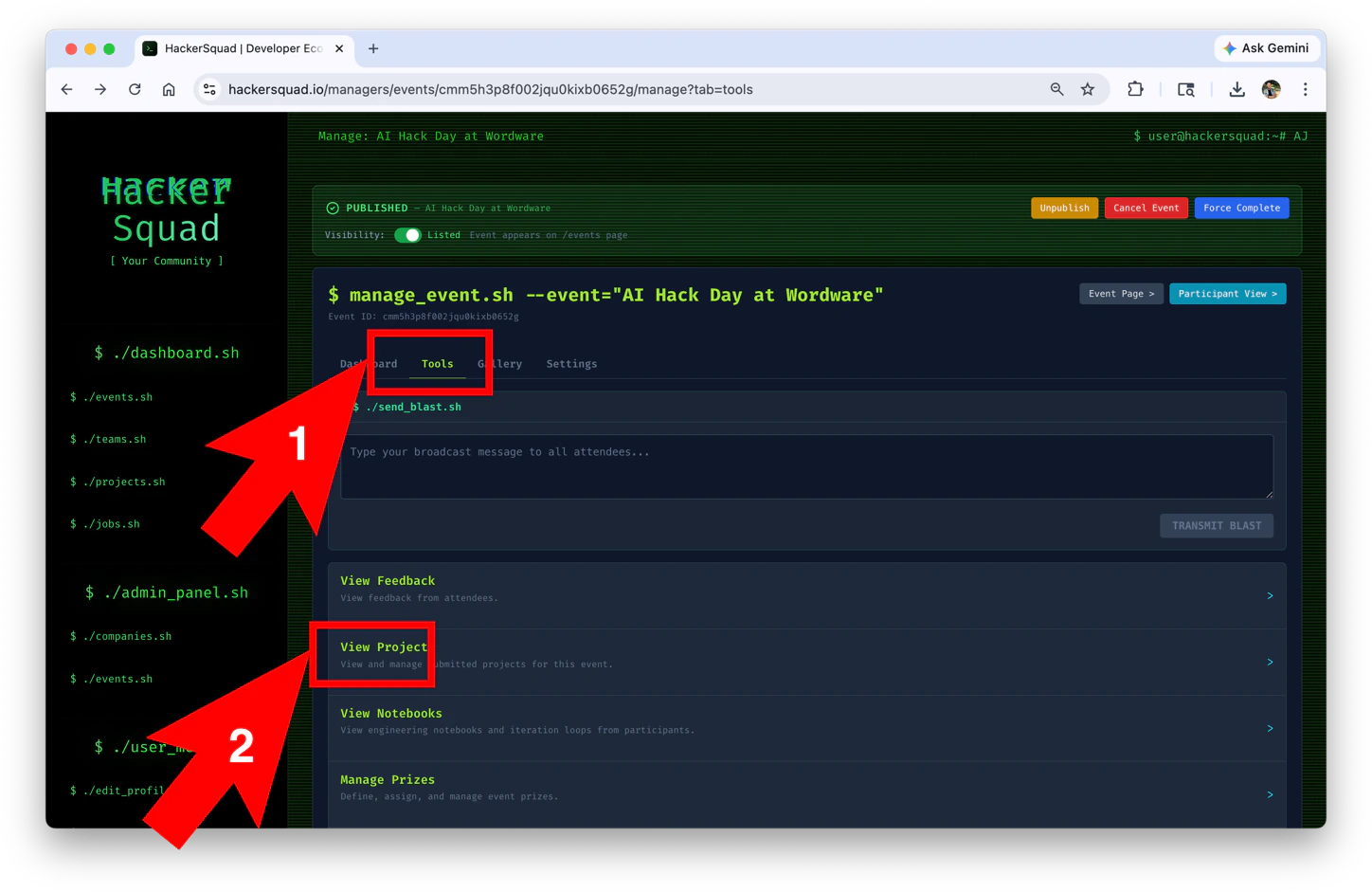
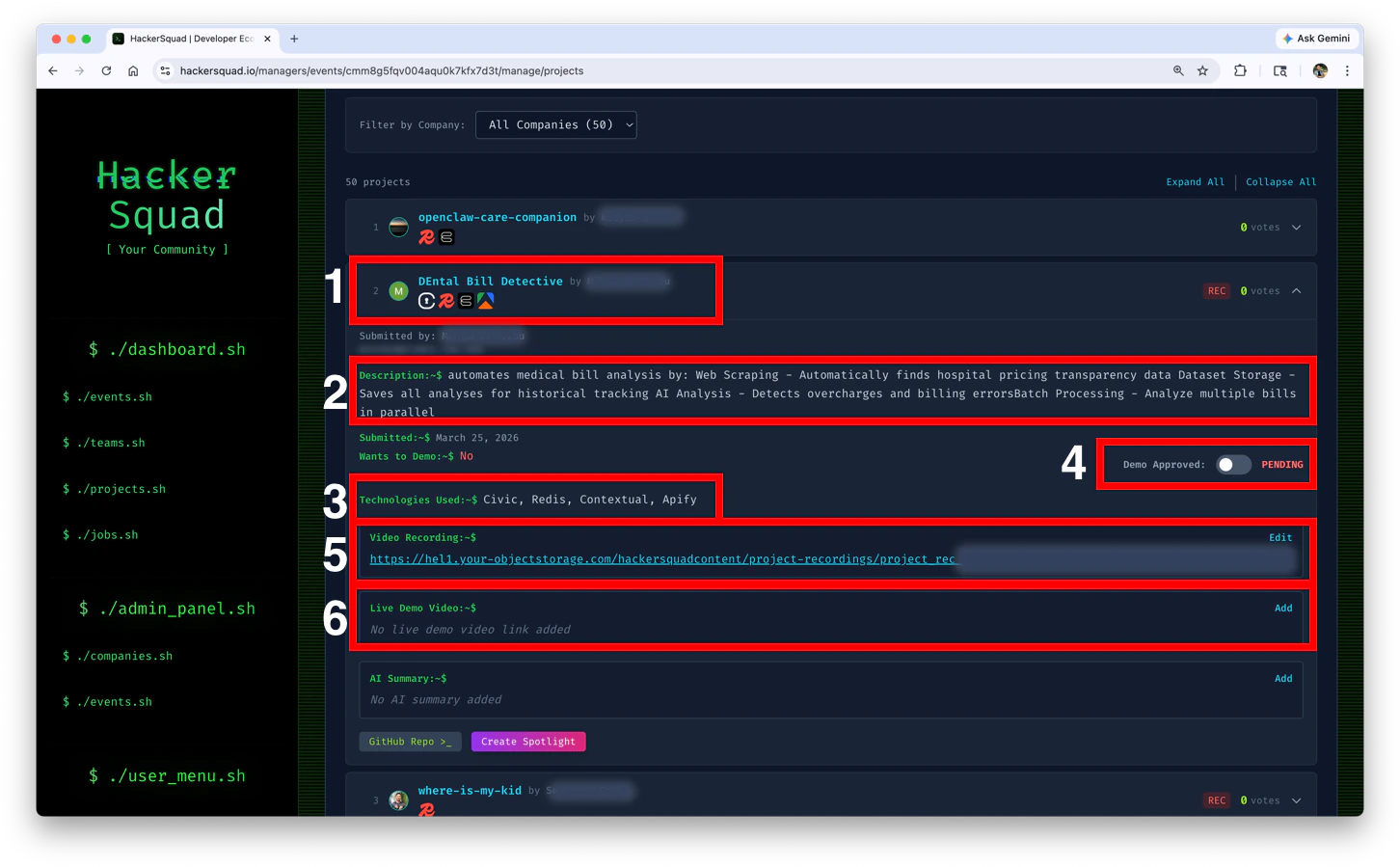
Projects are built by teams or individuals. They represent a teams effort and grind to solve a problem based on your problem statement. In the event manager portal, you can view all projects, their descriptions, the tools they’ve selected to use in that project, their project video, a GitHub link to their code and more.
You can view projects on the free plan.
There are two ways to navigate to view projects.
Option 1Option 2
View Projects 1View Projects 2

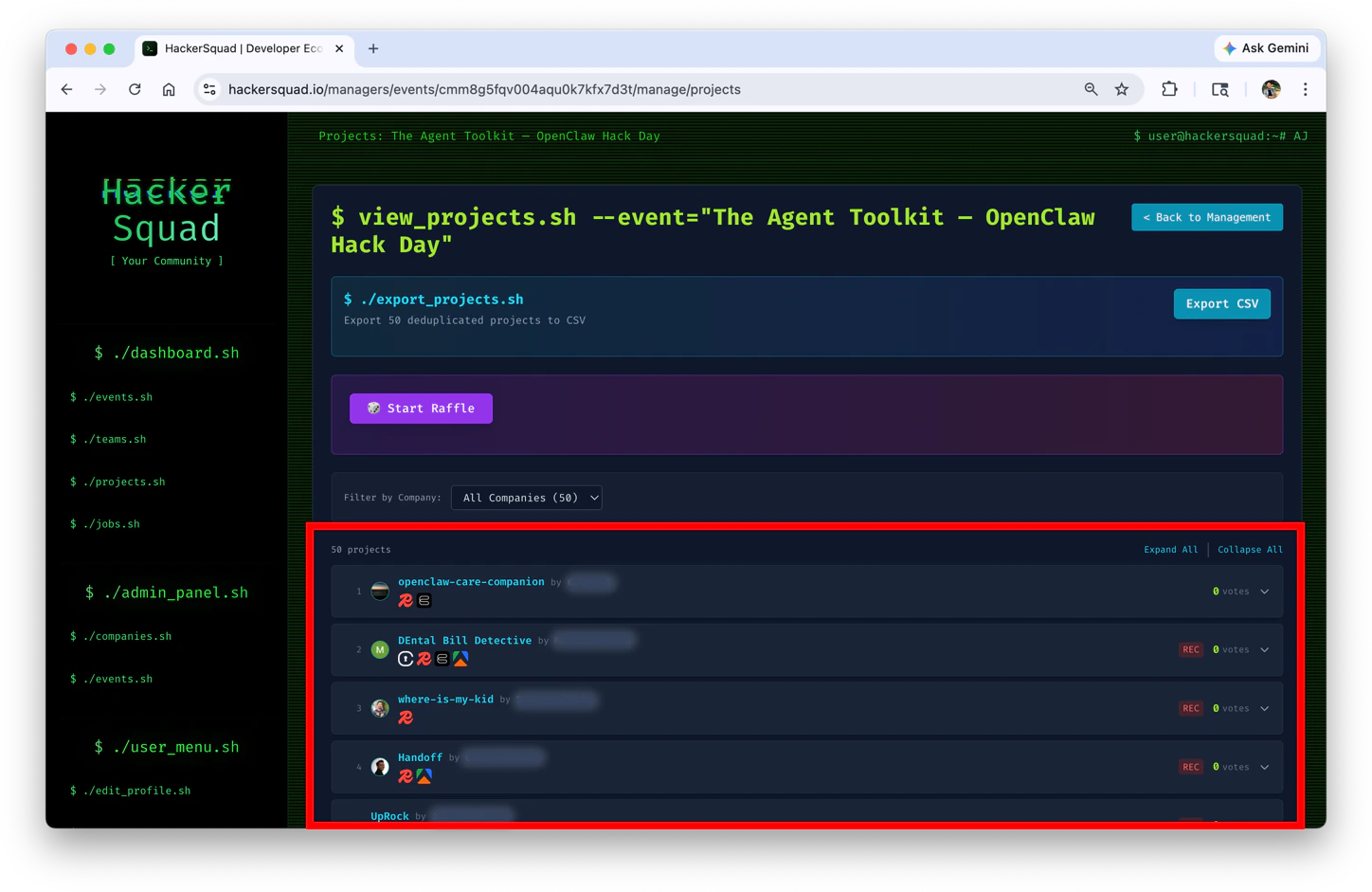
Project List

The projects are laid out in a vertical list of expandable projects. There are icons for company logos that indicate what each tool was used in that particular project. The selectable list of companies are the added partner companies in that event. Project list
Expanded Project View

1

Open the event creation form

Navigate to your Events Overview page and click the Create Event button. You can also start from the dashboard by clicking the Run Events card.
2

Enter event details

Fill in the following fields:
  • Event Name — A clear, descriptive title for your event
  • Description — A detailed overview of what attendees can expect, including goals, agenda, and any requirements
  • Event Format — Select from the formats listed above
  • Start Date & Time — When the event begins
  • End Date & Time — When the event ends
  • Location / Address — The physical venue or indicate if the event is virtual
  • Event Image — Upload a cover image for the event listing
  • Registration Link — Paste the URL where attendees can register (e.g., a Luma event link)
3

Review and publish

Review your event details and click Create Event to publish. Your event will appear on the Events Overview page and can be managed through the Event Management dashboard.
Set up a Luma event first for registration, then paste the registration link into the HackerSquad event form.

After creating your event

Once your event is live, you can:
  • Manage registrations — Track who has signed up and their roles. See Registrations.
  • Configure settings — Set up judging, Cloud IDE, password protection, and more. See Event Settings.
  • Invite speakers — Add speakers to your event lineup. See Speakers.
  • Set up prizes — Create prize categories and configure sponsorship tiers. See Prizes.

Next steps

Event Management

Learn how to manage your event from the management dashboard.

Event Settings

Configure judging, Cloud IDE, and other event options.